
The Testimonial Rating Summary block lets you display an overview of your published testimonials, including their average rating, stars, rating count, reviewer avatars, and source platform. You can filter the summary, choose from several layouts, and optionally link it to a page that contains all your reviews.
Requirements
- Strong Testimonials and Strong Testimonials Pro 1.2.6 or newer are installed and active.
- Your Strong Testimonials Pro license is active.
- You have at least one published testimonial with a rating.
Add the Testimonial Rating Summary block
- Open the page or post where you want to display the rating summary.
- Click the + block inserter.
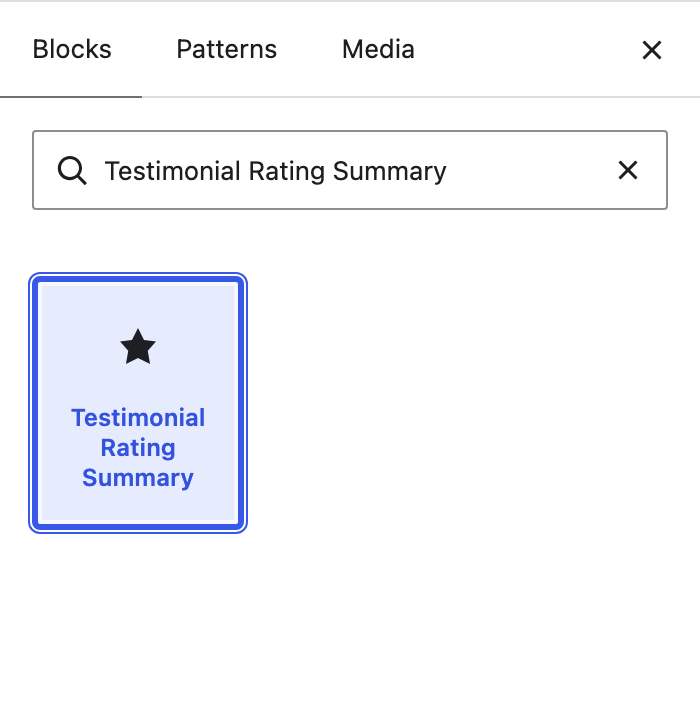
- Search for Testimonial Rating Summary.
- Select the block to add it to the page.
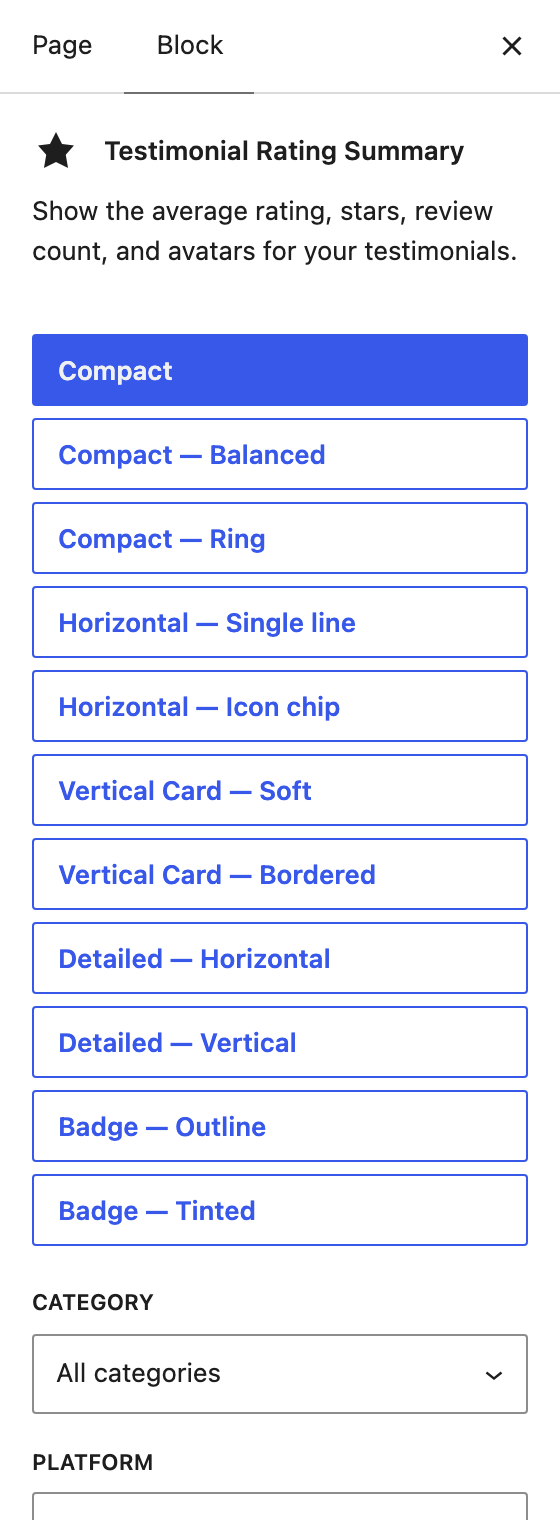
- In the block settings sidebar, select a layout.
- Use Category, Platform, and, when available, Rating field to choose which testimonials are included.
- Enable or disable the information you want to display, such as the average rating, stars, rating count, avatars, or platform name.
- Update or publish the page.
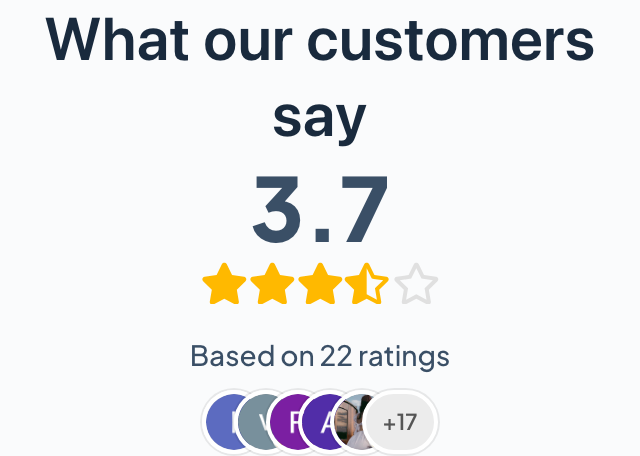
The preview updates in the editor as you change the block settings.
Configure the block in standard mode
When you first add the block, the settings sidebar opens in standard mode. This mode contains the controls most people need to choose a design, select the testimonials included in the calculation, control the visible rating information, and add a basic link to a reviews page.
Choose a layout
The block includes the following layouts:
- Compact
- Compact — Balanced
- Compact — Ring
- Horizontal — Single line
- Horizontal — Icon chip
- Vertical Card — Soft
- Vertical Card — Bordered
- Detailed — Horizontal
- Detailed — Vertical
- Badge — Outline
- Badge — Tinted
Each layout has a predefined arrangement and style. Some controls are available only when the selected layout supports them. For example, the badge layouts do not display reviewer avatars or a call to action, while the detailed layouts include a rating breakdown.
Filter the testimonials included in the summary
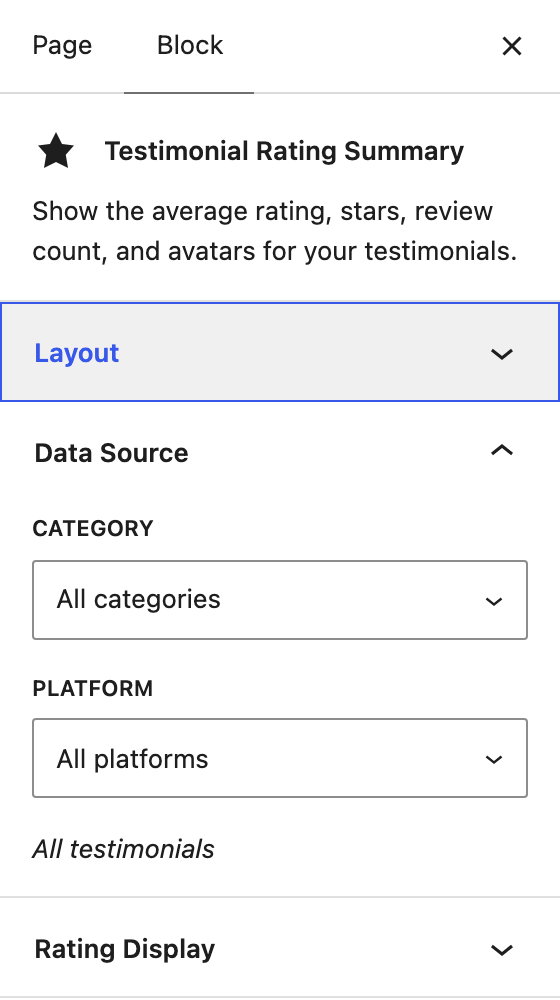
Use the data source controls to determine which testimonials contribute to the rating summary:
- Category — Include testimonials from one testimonial category, or leave All categories selected.
- Platform — Include testimonials from a specific source, or leave All platforms selected. Available sources include Google, Airbnb, Facebook, Yelp, Trustpilot, Booking.com, Capterra, G2, Zomato, and WooCommerce.
- Rating field — Select the rating field used in the calculation. This setting appears when more than one rating field is configured. You can use the default rating field, a specific field, or All rating fields.
When you select both a category and a platform, a testimonial must match both filters to be included. Only published testimonials are counted.
If All rating fields is selected, the block first calculates the average of the rating fields for each testimonial, then uses those values in the overall summary.
Choose what to display
- Show average — Display the numeric average rating.
- Show stars — Display the star rating or the layout’s star icon.
- Show count — Display the number of ratings included in the summary.
- Show avatars — Display available reviewer images. This setting is shown only for layouts that support avatars.
- Show platform logo/name — Display the selected platform’s logo and name. This setting becomes available after you select a specific platform.
- Star size (px) — Change the size of the five-star display when the selected layout supports it.
- Filled star color — Change the color of filled stars.
- Background color — Change the layout background when supported.
- Icon star color — Change the decorative star icon used by Horizontal — Icon chip.
- Heading — Add an optional heading and select its heading level.
Reviewer avatars are taken from the testimonial’s featured image, imported platform profile photo, or Gravatar, in that order. Testimonials without an available image are skipped in the avatar row.
Add a basic link to all your reviews
- Enable Show CTA.
- Select a page under Destination page.
- Update or publish the page.
In standard mode, the CTA links to an existing WordPress page. The default button label is See all reviews. To use an external URL, change the label, make the whole card clickable, or customize the button, enable advanced mode. The CTA is not displayed on the frontend until it has a valid destination.
Use advanced mode
For more control, expand the block editor’s Advanced panel and enable Enable advanced mode. The sidebar changes from the standard quick controls to grouped settings panels. Your current layout, filters, and display choices remain available; advanced mode adds more detailed content, rating, avatar, CTA, and card styling controls.
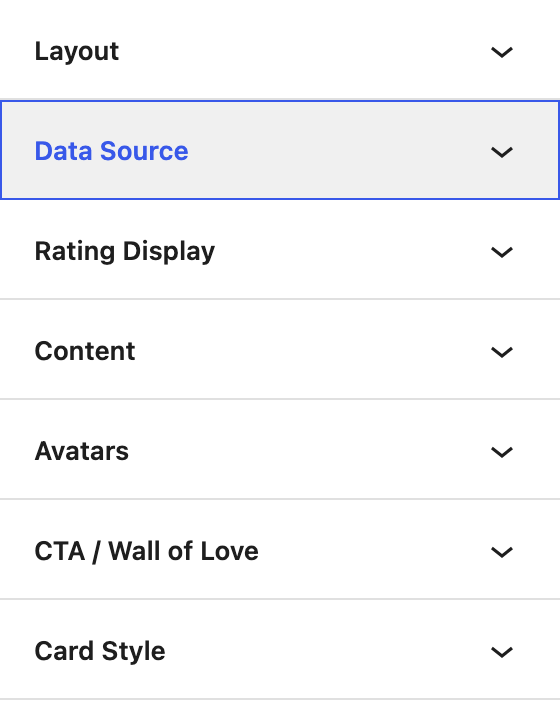
Layout and Data Source
These panels contain the same layout, category, platform, and rating-field choices available in standard mode. They are reorganized into collapsible sections so the additional settings remain easier to navigate.
Rating Display
- Decimal precision — Display the average with 0, 1, or 2 decimal places.
- Star mode — Use Exact / fractional stars or round the visual star rating to the nearest whole star. This changes the stars only; the numeric average keeps the selected decimal precision.
- Star size (px) — Set the star size from 12 to 40 pixels.
- Filled star color and Empty star color — Customize the star colors.
Content
Add a heading or replace the automatically generated summary text. The heading and summary support {average}, {count}, {platform}, and {category}.
For example: Rated {average} from {count} customer reviews
Leave Summary text empty to use the text generated automatically by the selected layout.
Avatars
- Max avatars — Show between 1 and 10 avatars.
- Avatar size (px) — Set the avatar size from 20 to 64 pixels.
- Overlap (px) — Control how much adjacent avatars overlap.
- Show remainder indicator (e.g. “+20”) — Show how many additional ratings are not represented by the visible avatars.
CTA / Wall of Love
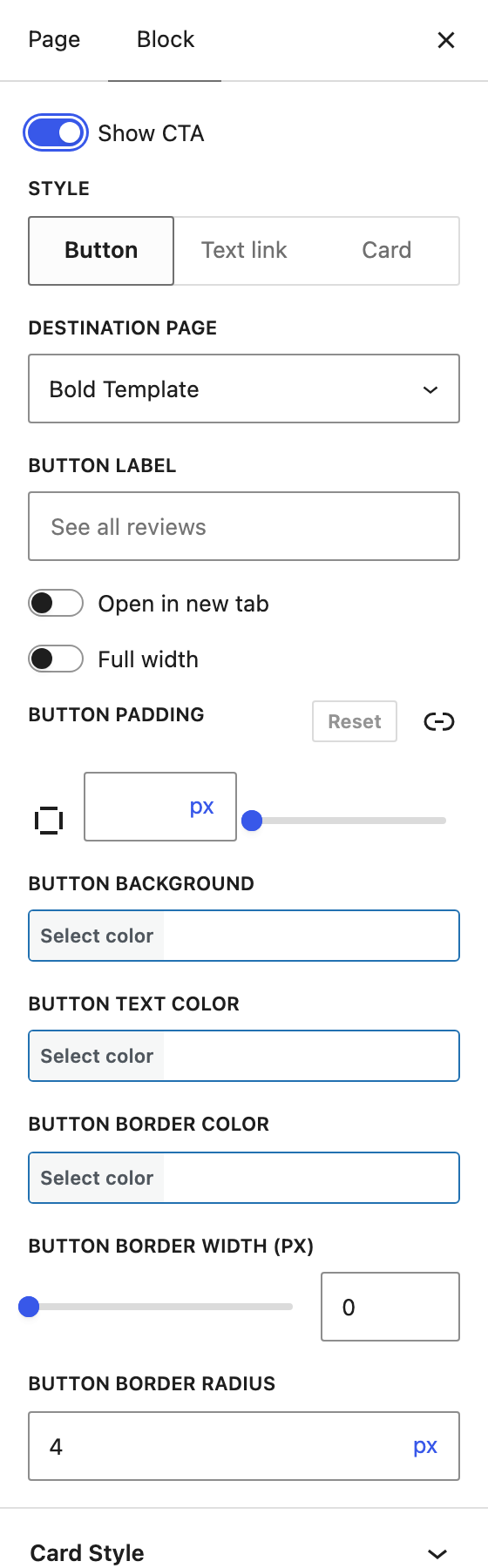
Choose an internal page or External URL as the destination. Depending on the selected layout, the CTA can be a Button, Text link, or Card that makes the entire rating summary clickable.
You can open the destination in a new tab and, for button CTAs, customize the label, width, padding, background, text color, border, and border radius.
Card Style
Customize the card’s background and text colors, padding, spacing, border color, border width, and border radius. The Horizontal — Icon chip layout also provides an Icon star color setting.