
The Turnstile option in the Strong Testimonials CAPTCHA extension provides an additional layer of security to prevent spam submissions on your testimonial forms.
This feature is available in the premium version of the extension and requires API keys from Cloudflare’s Turnstile service.
Below, we will guide you through the installation and configuration process to enable Turnstile on your testimonial forms.
Activate the Strong Testimonials CAPTCHA Extension
To use Turnstile, you first need to activate the Strong Testimonials CAPTCHA extension.
In order to activate it, you will need to make sure that you have Strong Testimonials Pro installed and enabled, then also make sure that your license key is activated from Testimonials > Extensions. After confirming this, you only need to use the status switch from the extensions table to enable the feature.
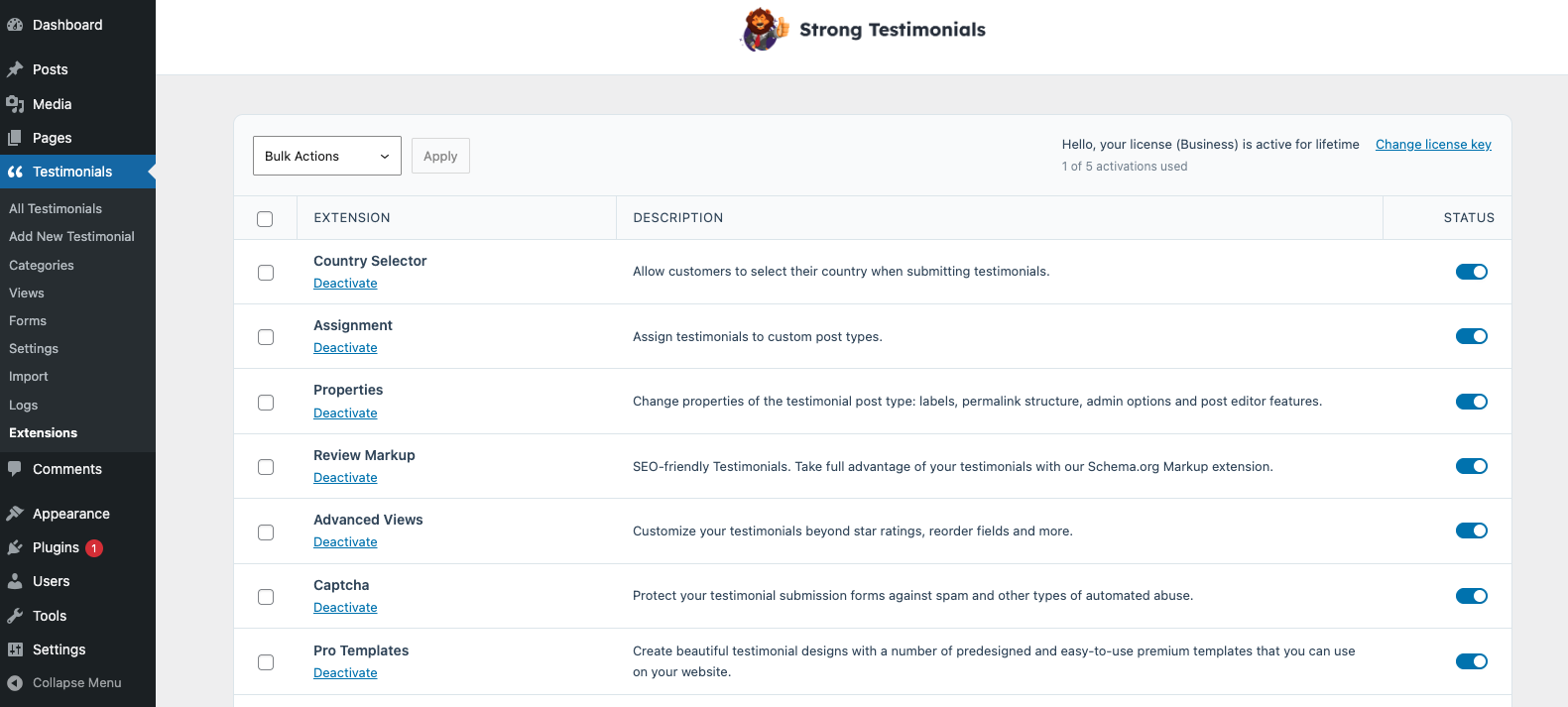
Configure Turnstile
Once the extension is installed and activated, follow these steps to enable Turnstile:
-
Go to Testimonials > Settings > Spam Control > Turnstile > tick the Enable Cloudflare Turnstile option.
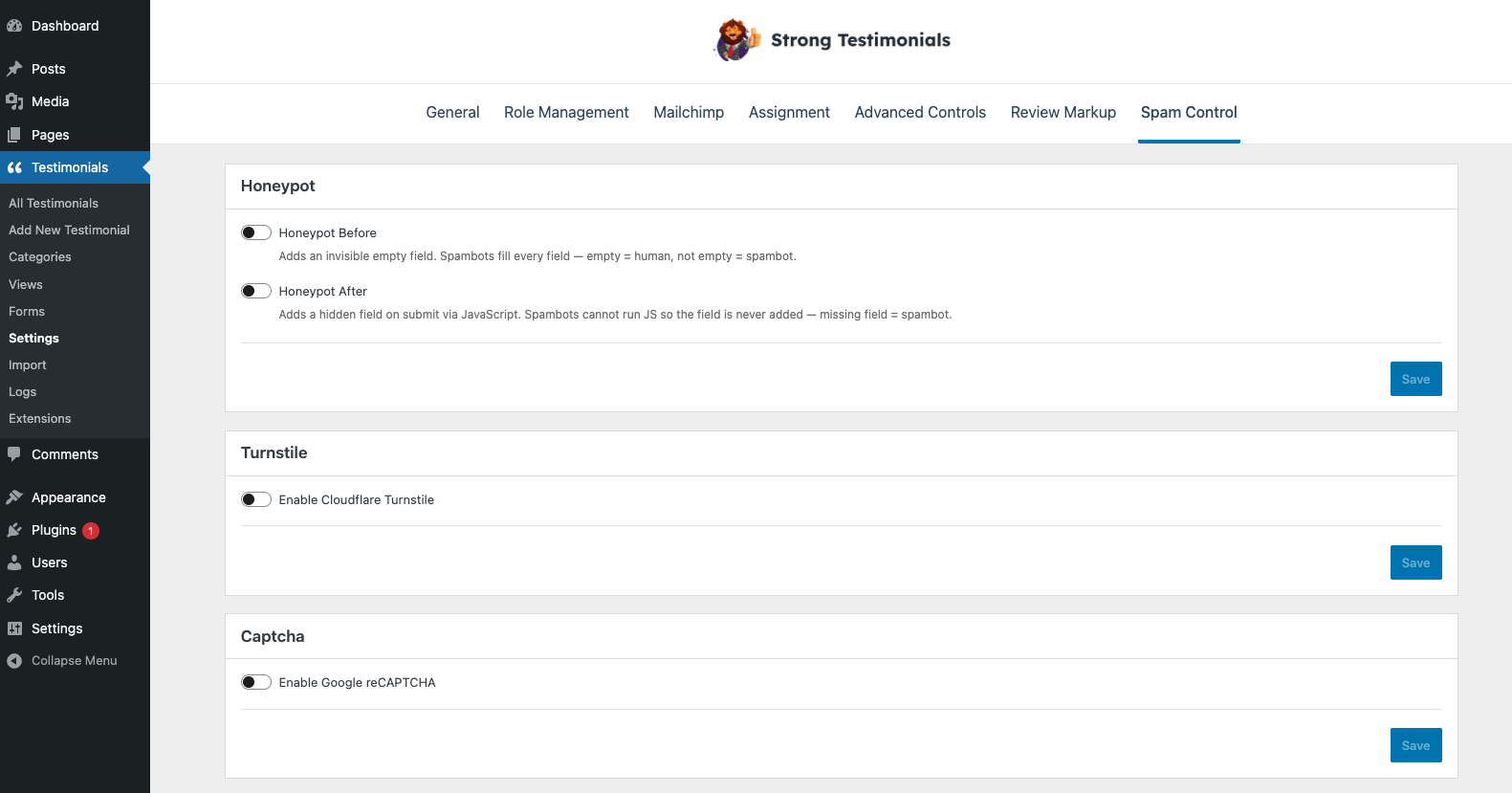
-
Enter your Turnstile Site Key and Turnstile Secret Key.
-
Add a Turnstile Label if desired (Optional) > Save Changes.
Obtaining Your Turnstile API Keys
-
Visit Cloudflare and log in using Google, Apple, or your email and password.
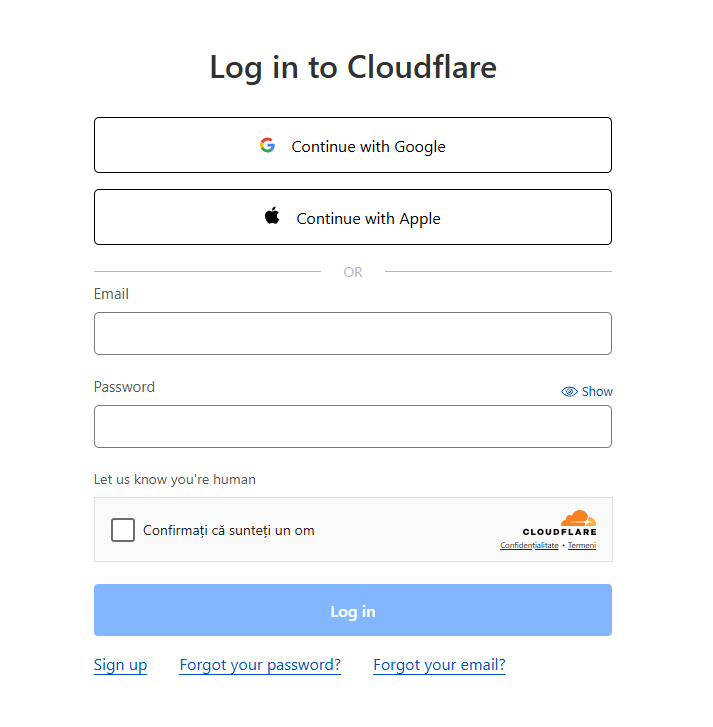
-
Navigate to Turnstile > Add Widget.
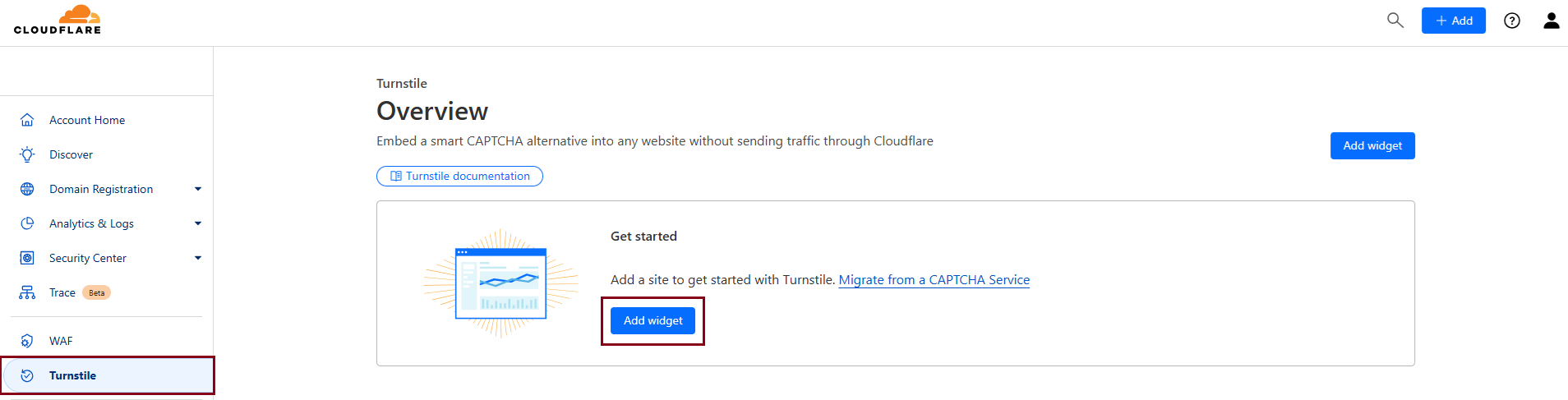
-
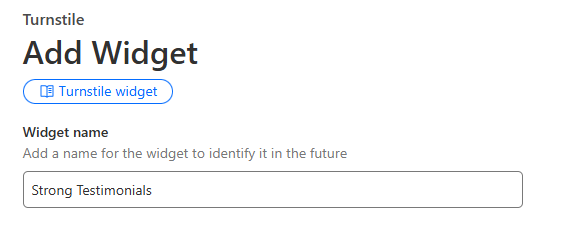
In Widget Name, enter a title for your widget.
-
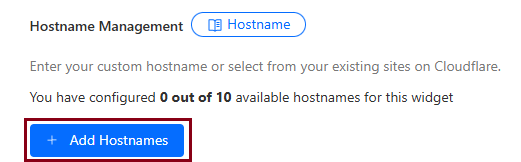
Under Hostname Management, click Add Hostnames.
-
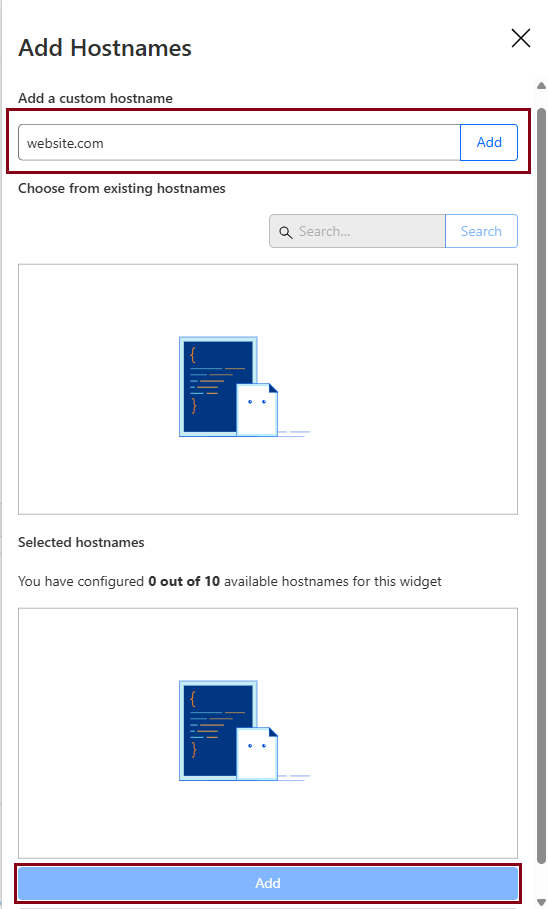
Enter your website URL and check the box in front of it at the bottom.
-
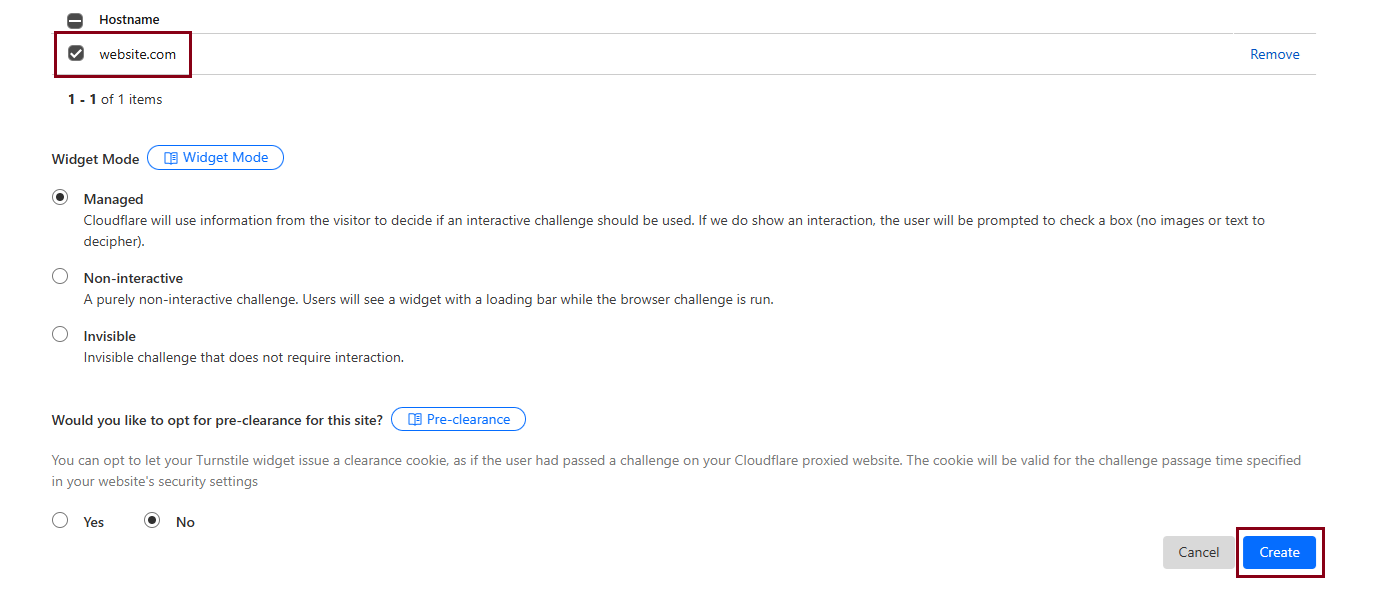
Click Create.
-
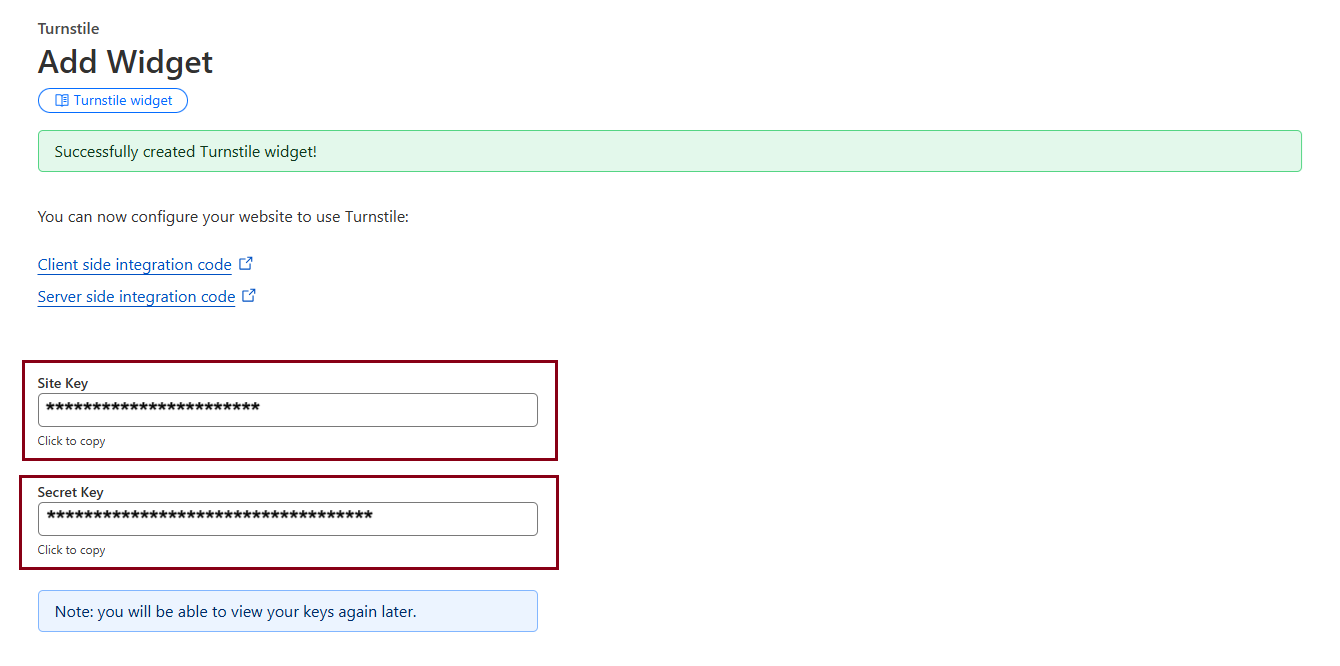
Copy the Site Key and Secret Key displayed on the screen.
-
Return to your WordPress Dashboard > Testimonials > Form > Settings > Turnstile and paste the keys > Save Changes.
By following these steps, you have successfully enabled Cloudflare’s Turnstile CAPTCHA on your Strong Testimonials forms. This will help reduce spam and ensure that only genuine testimonials are submitted.