
With the help of this extension, an email will be sent to the customer upon new testimonial submission and also when the testimonial is approved.
How to activate it?
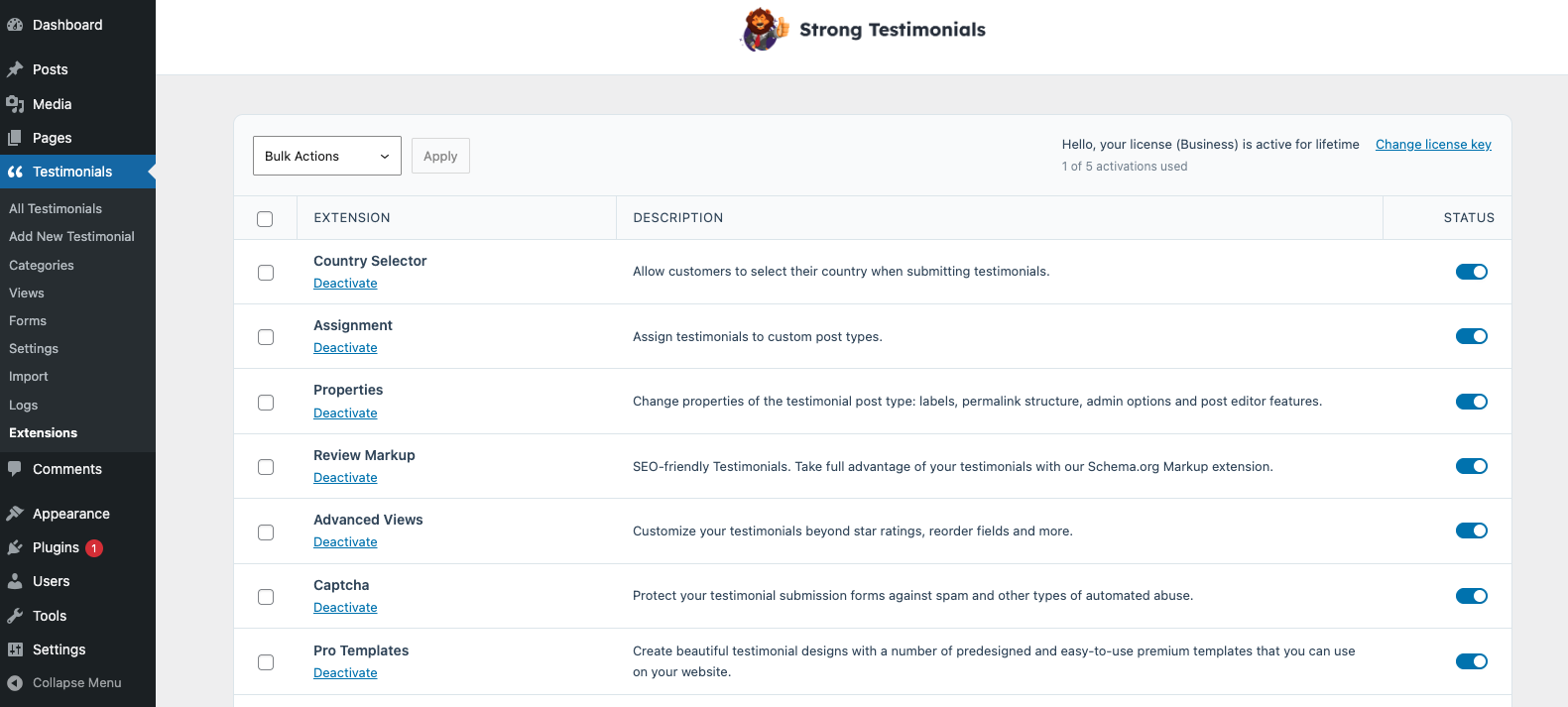
The Strong Testimonials Enhanced emails extension is a premium extension. In order to activate it, you will need to make sure that you have Strong Testimonials Pro installed and enabled, then also make sure that your license key is activated from Testimonials > Extensions. After confirming this, you only need to use the status switch from the extensions table to enable the feature.
How to use it?
To use and enable it go to Testimonials > Forms > Settings > scroll down to Actions. You will see in the ‘Notification Email’ section that you have 3 options:
- Send an email upon new testimonial submission
- Notify the submitting user that their testimonial’s waiting for approval
- Notify the submitting user that their testimonial has been approved
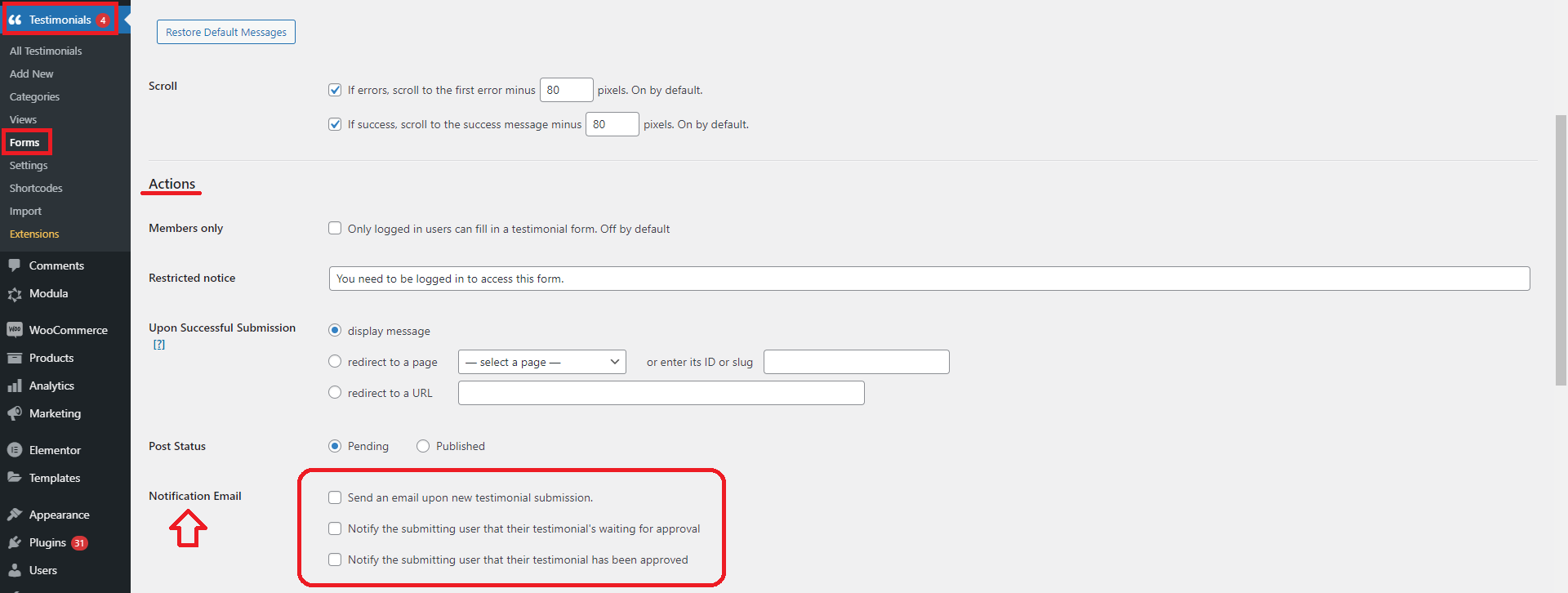
When you enable the ‘ Send an email upon new testimonial submission ‘ option there will be displayed other options as well:
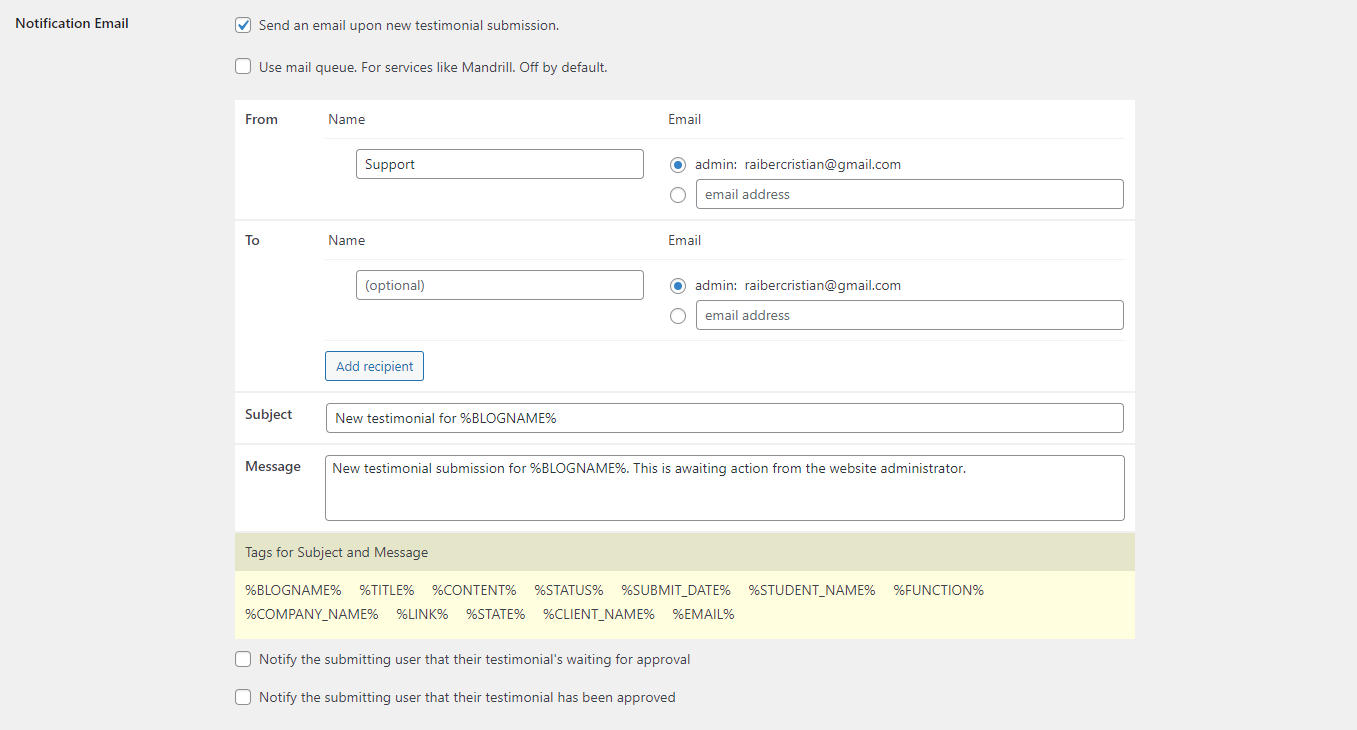
Use mail queue. For services like Mandrill. This will be off by default.
From: you can insert the name and email address from whom the email is sent by
To: you can insert the name of the user (it is optional) and their email address. You can also add another recipient if it is the case
Subject: add the subject of the email
Message: insert here the message you want to be sent in the email
When you enable the ‘ Notify the submitting user that their testimonial’s waiting for approval ‘ option the following will be displayed:
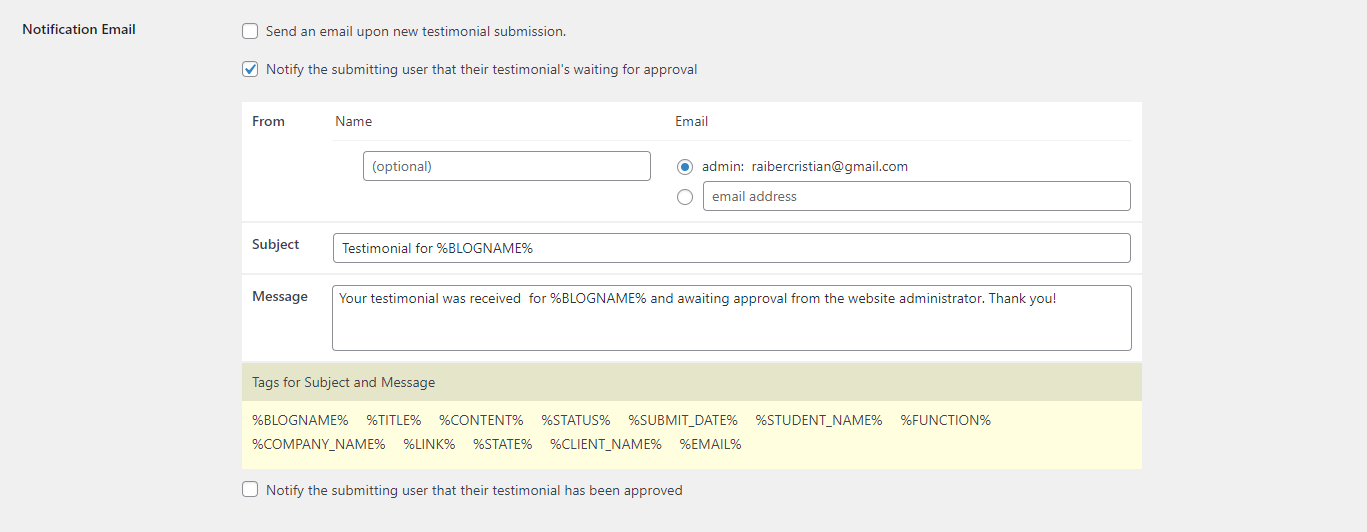
From: insert here the name (optional) and the email
Subject: add a subject to the notification email
Message: insert the message you want to let users know that their testimonial is waiting for approval
When you enable the ‘ Notify the submitting user that their testimonial has been approved ‘ option the same option you saw above in the other section will be displayed.
