
Email confirmation adds a second check to every testimonial submitted through your form. Before you see a new testimonial, the visitor has to confirm the email address they entered. Only then does the testimonial reach your review queue, and once you publish it, it shows a Verified customer badge.
This keeps fake and mistyped submissions out of your queue and tells your visitors that the people behind your testimonials are real.
Requirements
- Strong Testimonials Pro with an active license key.
- A submission form that includes an Email field.
How double verification works
- A visitor submits your testimonial form. The testimonial is saved with the status Pending Confirmation, and the visitor is asked to check their inbox.
- Strong Testimonials sends a confirmation email to the address from the form. The link in it is valid for 7 days by default.
- The visitor opens the link. Their testimonial is confirmed, marked Email Confirmed and moved to Pending.
- If the Notification Email is enabled, you receive it now, not when the form was submitted, so you only review testimonials from confirmed email addresses.
- You review the testimonial and publish it. It appears on your site with the Verified customer badge.
Testimonials that are never confirmed stay hidden and never reach your review queue.
Enable email confirmation
- In your WordPress dashboard, go to Testimonials → Form and open the Settings tab.
- Under Post Status, select Pending Confirmation.
- Click Save Changes. The Email Confirmation settings appear below the post status options.
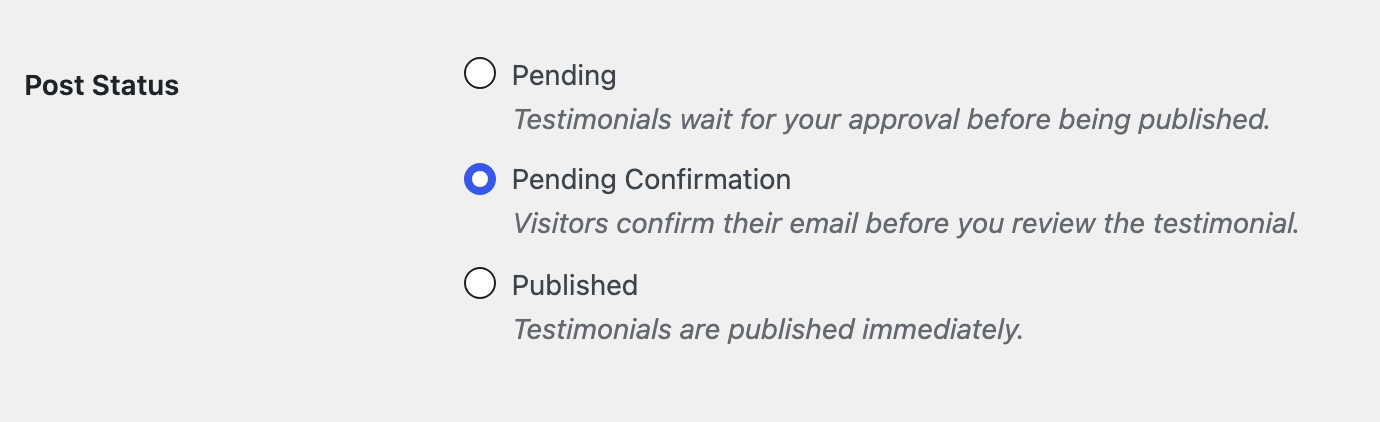
Using several forms? With the Multiple Forms extension, each form has its own settings. Go to Testimonials → Forms, edit the form, and select Pending Confirmation there.
Customize the confirmation email
Under Confirmation Email, you can change who the email comes from and what it says.
| Setting | What it does |
|---|---|
| From | The sender name and email address. By default, the email is sent from your site’s admin email address. |
| Subject | Default: Please confirm your testimonial for %BLOGNAME% |
| Message | The body of the email. Keep the %CONFIRM_LINK% tag in it, otherwise the visitor has no way to confirm. |
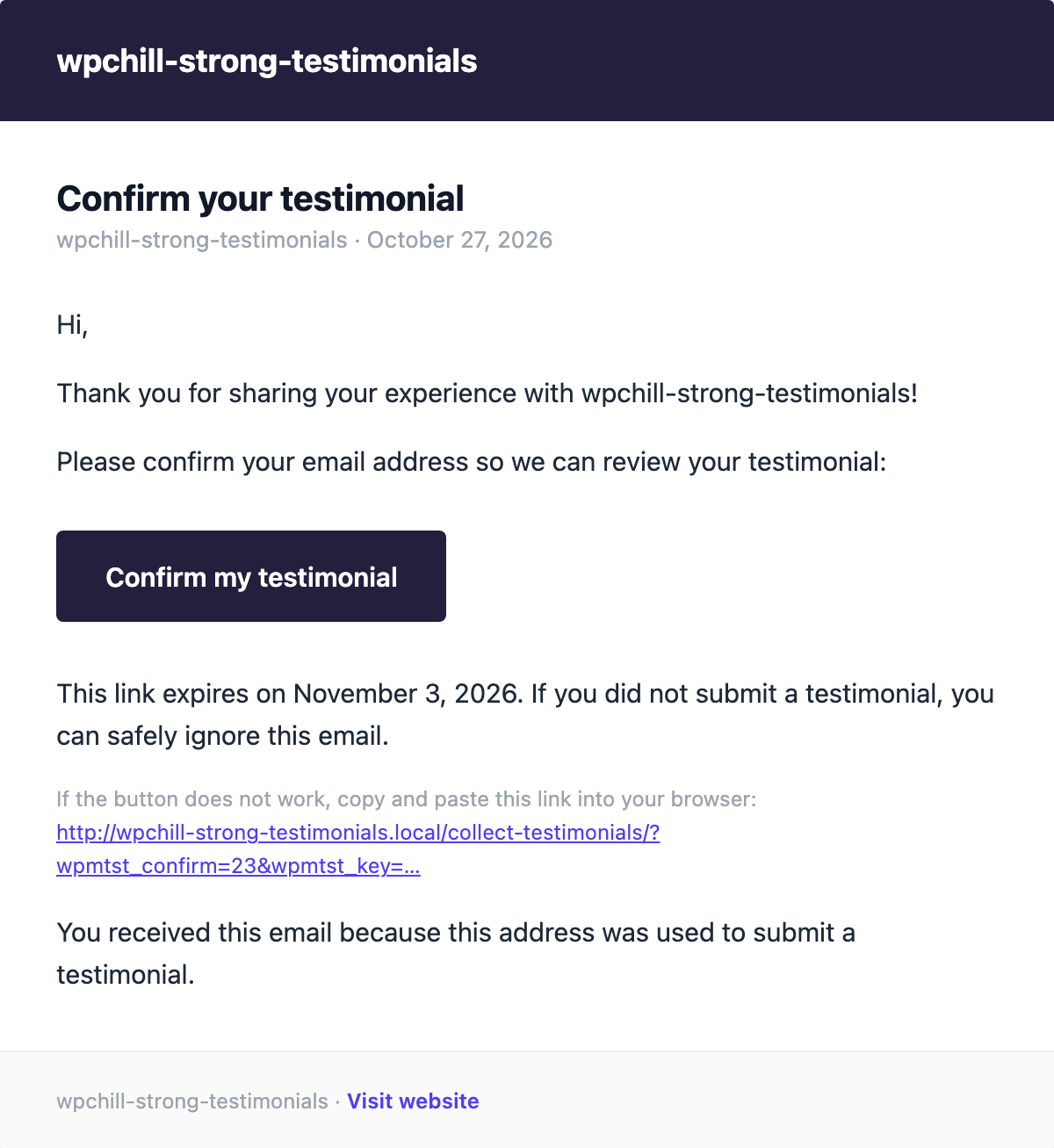
Tags for the subject and message
| Tag | What it shows |
|---|---|
%CONFIRM_LINK% | A Confirm my testimonial button that opens the confirmation link. |
%CONFIRM_URL% | The confirmation link as plain text, for email clients that don’t show the button. |
%EXPIRY_DATE% | The date the confirmation link expires. |
%EMAIL% | The email address entered in the form. |
%BLOGNAME% | Your site title. |
%TITLE% | The testimonial heading. |
%CONTENT% | The testimonial text. |
%SUBMIT_DATE% | The date the testimonial was submitted. |
You can also use your form’s own fields as tags, written in capitals between percent signs, for example %CLIENT_NAME%.
Set how long the link is valid
Under Link Expiration, choose how many days the confirmation link stays valid, from 1 to 365. The default is 7 days.

Automatically delete testimonials that were not confirmed before the link expired is enabled by default. A daily cleanup removes those testimonials. If you turn this option off, expired testimonials stay in your list as unconfirmed, and you can still send them a new link.
Choose where visitors see the confirmation
When a visitor opens the link, the confirmation message replaces the content of the page where they submitted the form. To show it on a different page, choose one under Confirmation Page.
You can edit each message the visitor may see:
| Message | When the visitor sees it |
|---|---|
| After Submission | Right after the form is sent. Use %EMAIL% to include the address the email was sent to. |
| Confirmed | When the testimonial is confirmed. |
| Already Confirmed | When the visitor opens a link that was already used. |
| Invalid or Expired Link | When the link is wrong or has expired. |
Customize the Verified customer badge
Published testimonials from confirmed email addresses show a badge. Under Verified Badge, choose its Icon and Text. To hide the badge, choose no icon and leave the text empty.

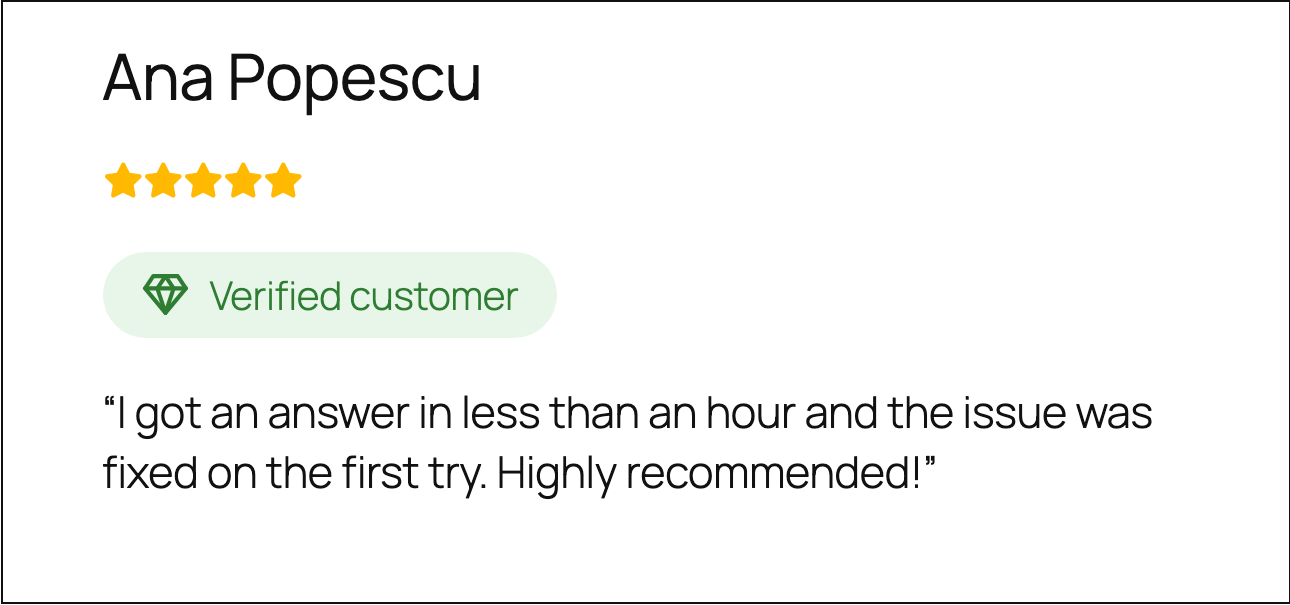
To style the badge, use these CSS classes: .wpmtst-verified-badge-wrap, .wpmtst-verified-badge, .wpmtst-verified-badge--{icon}, .wpmtst-verified-badge__icon and .wpmtst-verified-badge__text.
Review confirmed testimonials
In Testimonials → All Testimonials, each submission shows where it stands: Pending Confirmation until the visitor confirms, then Email Confirmed.
When you edit a testimonial that is still waiting, the Publish box shows when the link expires. If the visitor can’t find the email or the link has expired, click Resend confirmation email. They receive a new link, valid for the full period again.
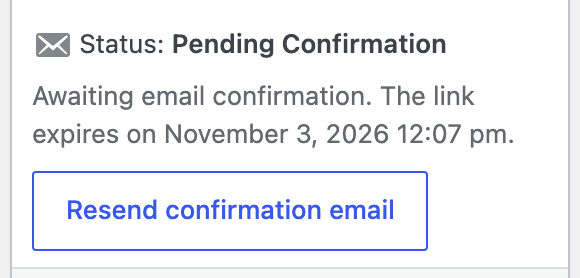
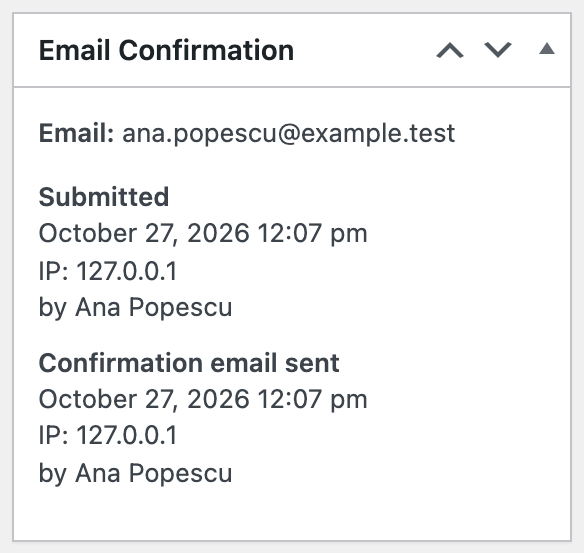
The Email Confirmation box shows the email address and the full history: when the testimonial was submitted, when the email was sent and when it was confirmed.
Frequently asked questions
Can an email security scanner confirm a testimonial by opening the link?
No. Many email providers open links to check them for threats. Fetching the link only shows the confirmation page; the testimonial is confirmed when the page loads in the visitor’s browser or when they click Confirm my testimonial.
Do I get a notification for every submission?
No. With email confirmation enabled, the Notification Email is sent only after the visitor confirms. You won’t be notified about testimonials that are never confirmed.
What happens if the visitor never confirms?
The testimonial stays as Pending Confirmation and never appears on your site. After the link expires, it is deleted automatically, unless you turned that option off.